Connecting A Wireless Mesh Extender
A wireless mesh extender can be one of the simplest ways to improve WiFi coverage, but only if it is installed in the right way. The device itself is only part of the solution. Placement, router compatibility, network naming and backhaul quality all affect whether the extender improves the network or simply creates another weak link.
In a modern home, WiFi is expected to support far more than casual browsing. Smart TVs, laptops, games consoles, phones, speakers, security cameras, thermostats and other connected devices all place pressure on the home network. That is why a mesh extender should be treated as part of the wider digital infrastructure of the home, not just a gadget plugged into a spare socket.
What A Wireless Mesh Extender Does
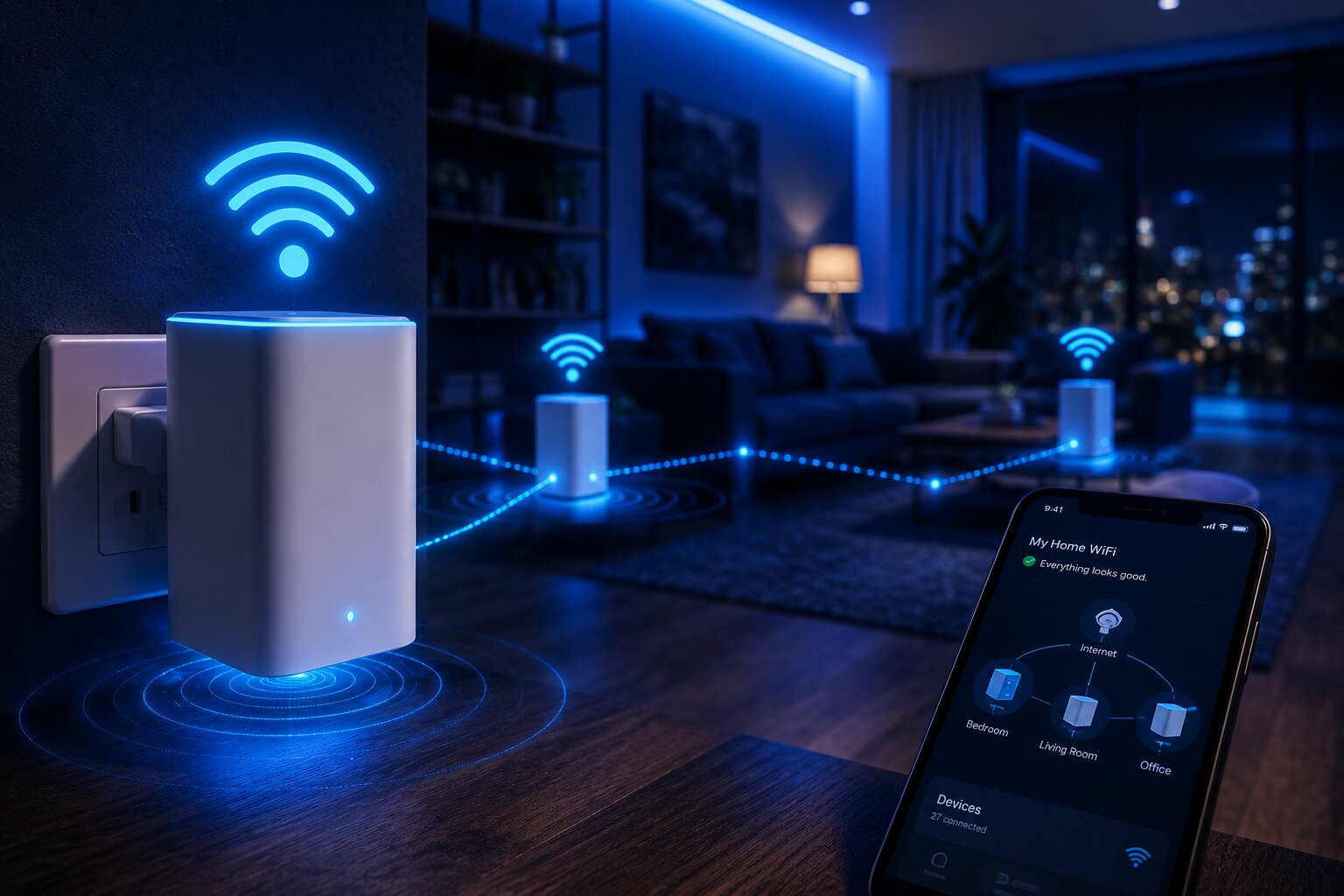
A wireless mesh extender expands the reach of a mesh WiFi system by acting as an additional node. It communicates with the main mesh router or another nearby mesh unit, then rebroadcasts coverage into another area of the home.
This is different from many older WiFi extenders. Traditional extenders often create a separate network name and may require devices to be manually moved from one network to another. A mesh extender is designed to work as part of one joined-up system, allowing devices to move more smoothly between access points.
That difference is central to understanding how to set up WiFi mesh properly. A mesh network should behave like a single coordinated system, rather than a patchwork of competing wireless signals.
Check Compatibility First
Before connecting a wireless mesh extender, check whether it is designed for your existing system. Mesh hardware is not always universally compatible. A satellite unit from one brand may not work with another brand’s mesh router, even if both use common WiFi standards.
Some systems support EasyMesh, a WiFi Alliance standard intended to improve interoperability between devices from different manufacturers. However, many consumer mesh systems still work best within their own ecosystem.
Before buying or installing the extender, check:
- the manufacturer’s compatibility list
- whether your existing router supports mesh expansion
- whether the extender is a true mesh node or a basic repeater
- the supported WiFi standard
- whether app-based setup is required
- whether Ethernet backhaul is supported
This matters especially when assessing key wireless mesh systems compared side by side, because expandability can be just as important as advertised speed.
Choose The Right Location
Placement is the biggest factor in whether a mesh extender succeeds. The most common mistake is placing the extender in the room with the worst signal. That may seem logical, but it usually performs badly because the extender has to receive a strong signal before it can pass one on.
Instead, place the extender between the main router and the area with poor coverage. It should sit in a location where the existing mesh signal is still reasonably strong.
Good placement usually means:
- open space rather than inside a cupboard
- away from thick walls
- away from microwaves and large appliances
- raised from the floor where possible
- not hidden behind a TV
- close enough to another mesh node for a strong link
A hallway, landing or open living area often works better than the far corner of a problem room.
Connect The Extender Through The App
Most modern mesh systems are configured through a mobile app. The process varies slightly by brand, but the basic steps are usually similar.
Start by plugging in the extender near the main router for initial setup. Open the mesh system’s app and choose the option to add a node, satellite or extender. The app should detect the device, update it if necessary and add it to the existing network.
Once pairing is complete, the app may ask you to move the extender to its final location. After it restarts, the app will usually test signal quality and tell you whether placement is strong, acceptable or poor.
If the app reports a weak connection, move the extender closer to the main router or another node. Do not ignore this warning. A poorly connected extender may make the WiFi icon look better while delivering unstable performance.
Use Ethernet Backhaul Where Possible
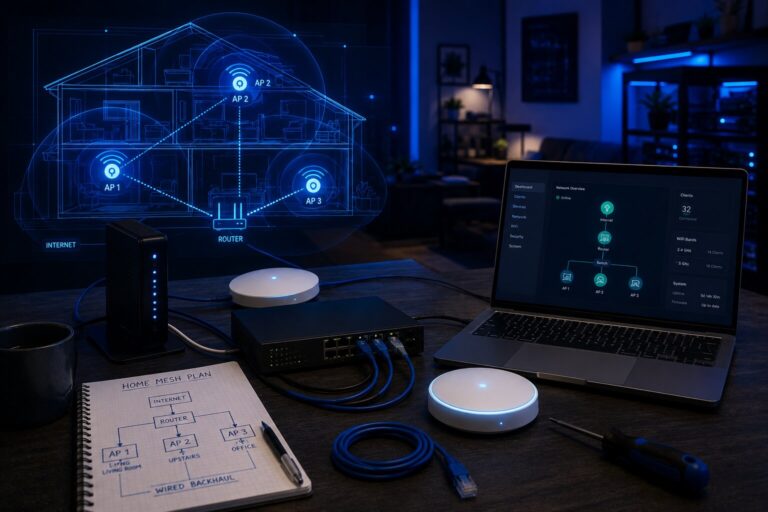
Wireless mesh extenders communicate with the rest of the network over WiFi unless they are connected by cable. This wireless link is known as backhaul. In many homes, wireless backhaul is convenient and works well enough. However, Ethernet backhaul is usually better.
Ethernet backhaul means the extender connects to the router or another node using a network cable. This can improve speed, reduce latency and free up wireless capacity for devices.
Ethernet backhaul is especially useful for:
- home offices
- gaming rooms
- media rooms
- garden offices with cabling
- large houses
- homes with thick walls
- multi-storey properties
If Ethernet is not practical, powerline may be worth considering. A future internal link to how powerline adapters work in real homes would fit naturally here, because powerline can sometimes provide a wired-style connection without running new Ethernet cables.
Reuse Or Rename The Existing Network?
A mesh extender should normally join the existing mesh network rather than create a new one. The point of mesh is to provide one network name, one password and smoother roaming between nodes.
If you are replacing an old extender, avoid keeping several legacy network names such as “HomeWiFi_EXT” or “KitchenWiFi”. These names can confuse users and cause devices to cling to weaker connections.
A cleaner setup uses:
- one main WiFi name
- one strong password
- one app for managing the system
- guest access if needed
- separate smart-home or IoT networks only where useful
This is also useful when planning a stronger home WiFi setup, because simplicity often improves reliability.
Connect Devices And Test Roaming
Once the extender is active, test the network in normal use. Walk through the property with a phone or laptop and check whether the device stays connected as you move between rooms.
You should test:
- video calls
- streaming services
- smart TV playback
- gaming latency
- smart speakers
- security cameras
- work laptops
- mobile devices
Do not judge the extender only by a single speed test. A good mesh connection should improve consistency, not just produce one impressive result. A room that previously lost connection but now streams reliably may be a success, even if the speed test is not the highest in the house.
Avoid Too Many Extenders
Adding more extenders is not always better. Too many mesh nodes can cause interference, inefficient routing and unnecessary handoffs between access points.
For a typical home, two or three nodes may be enough. Larger homes may need more, but each extender should have a clear purpose. Do not add units just because spare sockets are available.
A better approach is to map the problem areas:
- where signal drops
- where speed falls sharply
- where devices disconnect
- where latency increases
- where smart devices become unreliable
Then place extenders strategically. This is especially important in households using connected devices across multiple rooms, where total home automation depends on stable network coverage.
Mesh Extender Or Powerline Adapter?
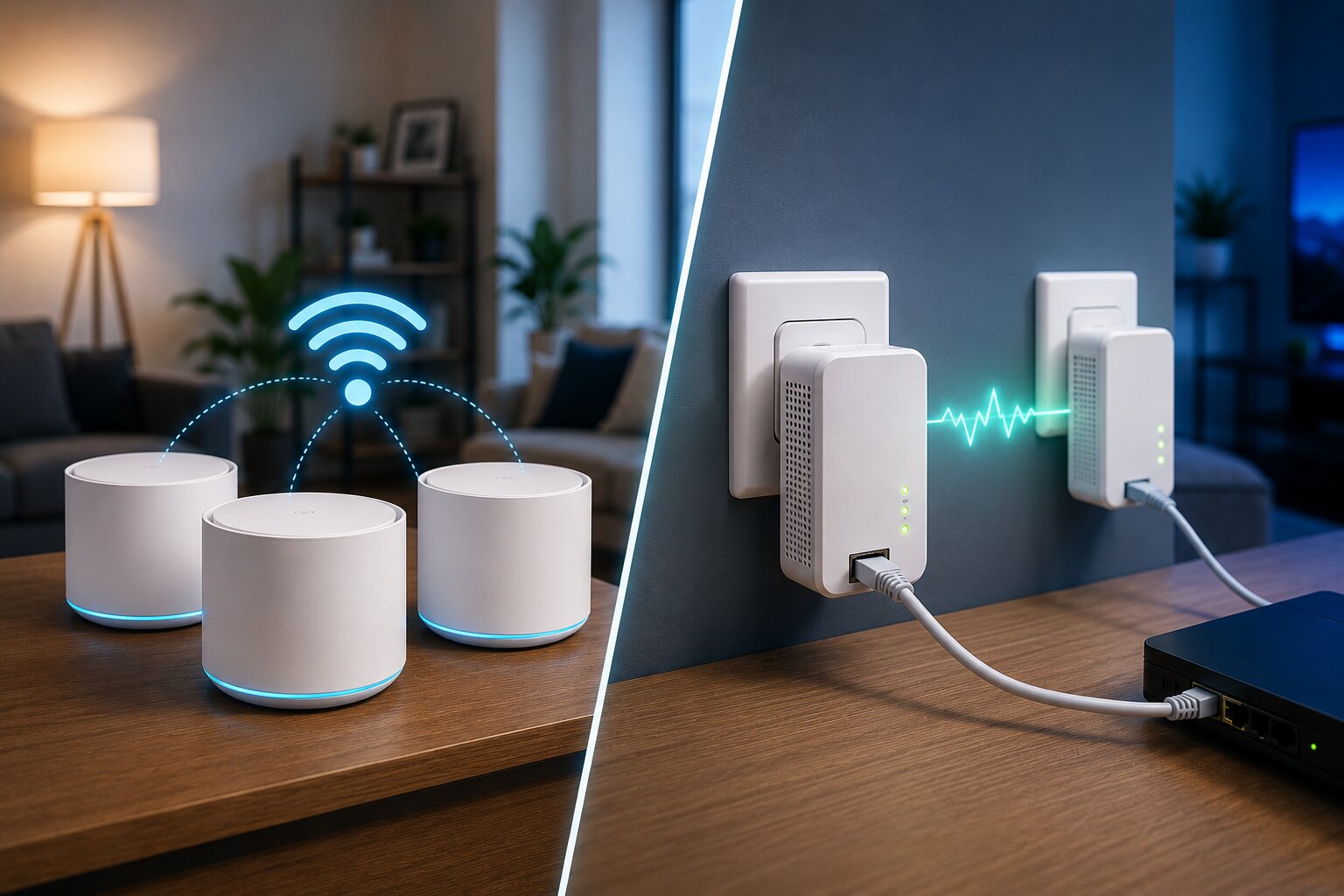
A mesh extender is not always the best solution. In some homes, powerline adapters may be more effective, especially where WiFi struggles to pass through thick walls or floors.
Powerline adapters send network data through the electrical wiring of the home. They can be useful for fixed devices such as desktops, consoles, streaming boxes and smart TVs. However, performance depends heavily on the quality and layout of the electrical wiring.
That is why a comparison of wireless mesh versus powerline adapters can be useful before spending money. Mesh is usually better for whole-home wireless coverage. Powerline can be better for a specific fixed device that needs a more stable link.
Gaming And Latency Considerations
For gaming, signal strength is only part of the issue. Latency, jitter and packet loss can matter more than raw download speed. A mesh extender may improve coverage, but if the wireless backhaul is weak, gaming performance can still suffer.
Where possible, connect a games console or gaming PC by Ethernet to the nearest mesh node. If that node has strong backhaul, the result may be good enough for many players. For competitive gaming, direct Ethernet to the router remains the strongest option.
In homes where cabling is not practical, powerline adapters for gaming networks may also be worth considering, especially for fixed consoles or desktop PCs.
Smart-Home Device Issues
Many smart-home devices still rely on 2.4 GHz WiFi. Mesh systems often combine 2.4 GHz and 5 GHz under one network name, which is convenient for users but can occasionally complicate device setup.
If a smart plug, camera or thermostat refuses to connect:
- check whether it only supports 2.4 GHz
- move your phone closer during setup
- use any IoT mode offered by the mesh app
- temporarily pause 5 GHz if the system allows it
- update the device app
- restart the mesh node nearest to the device
This is increasingly relevant as more homes adopt connected hardware. A strong mesh system supports the next generation of AI-powered smart devices by giving cameras, sensors and assistants a more reliable network foundation.
Common Problems After Installation
A mesh extender may appear to connect successfully but still perform poorly. Common issues include:
- the extender being too far from the main node
- interference from appliances
- outdated firmware
- devices staying attached to the wrong node
- poor broadband from the provider
- too many nodes in a small area
- double NAT issues caused by router settings
- older devices struggling with band steering
A dedicated guide to common wireless mesh problems can help troubleshoot these issues in more detail, especially where the network looks healthy in the app but still behaves poorly in practice.
When A Mesh Extender Is Worth It
A wireless mesh extender is worth adding when an existing mesh network is strong in some parts of the home but weak in others. It is especially useful for larger properties, awkward layouts, extensions, loft rooms and connected households with many devices.
It is less useful if the broadband connection itself is slow, the main router is poorly positioned, or the extender is placed too far from the rest of the network.
Used well, a mesh extender can make the home network feel more stable and less frustrating. It helps devices stay connected where people actually use them, whether that means streaming in the bedroom, working in a loft office or keeping smart-home devices online.
For readers with practical experience in home networking, smart devices or consumer technology, Dykes Do Digital welcomes relevant contributions through our Write For Us page.