Common Issues With Wireless Mesh Systems
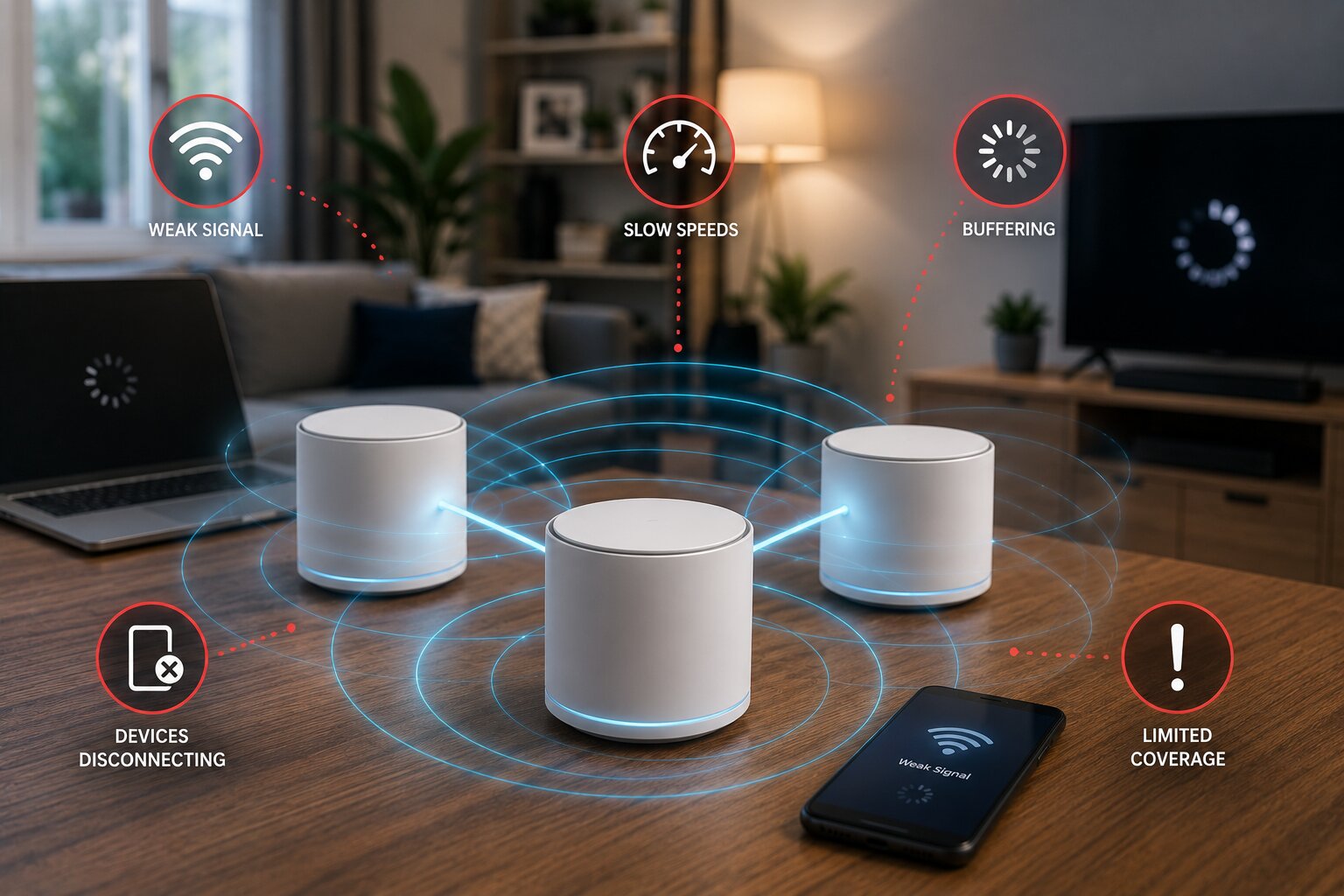
Wireless mesh systems can transform home WiFi, but they are not immune from problems. A mesh kit may promise seamless whole-home coverage, yet some households still experience slow speeds, dropped connections, awkward roaming, buffering, lag or unreliable smart-home devices.
The issue is often not that mesh technology itself is poor. More commonly, the system has been installed badly, placed poorly, configured incorrectly or expected to solve a problem that is actually caused by broadband, interference or device limitations.
Understanding the most common wireless mesh issues makes it easier to fix problems without immediately replacing the hardware.
Poor Node Placement
The most common mesh problem is poor placement. Many users put a satellite node in the room with the weakest WiFi. That seems sensible, but it can backfire.
A mesh node needs a good connection back to the main router or another node. If it sits inside a dead zone, it may have little usable signal to repeat.
A better approach is to place the node between the router and the weak-signal area. It should be close enough to receive a strong connection, but far enough away to extend coverage.
This is one of the most important lessons in how to set up WiFi mesh effectively.
Too Many Mesh Nodes
More mesh nodes do not always mean better WiFi. In smaller homes, too many nodes can create unnecessary overlap, interference and confusing device handoffs.
Signs of too many nodes include:
- devices switching between nodes too often
- inconsistent speeds
- unstable video calls
- unpredictable roaming
- app warnings about placement
- no performance improvement after adding another unit
A typical home may only need two or three well-placed nodes. Adding more hardware without a clear reason can make the network less efficient.
Weak Wireless Backhaul
Backhaul is the connection between mesh nodes. If the backhaul connection is weak, the whole system suffers.
A satellite node may show good WiFi signal to nearby devices, but still have a poor connection back to the main router. This can create the illusion of strong coverage while performance remains poor.
Weak backhaul can cause:
- slow speeds on satellite nodes
- lag during gaming
- buffering on smart TVs
- unstable video calls
- poor upload performance
- unreliable smart-home devices
Where possible, Ethernet backhaul is better. If Ethernet is not practical, careful placement becomes even more important.
For larger or more technical homes, building your own wireless mesh network at home may provide stronger backhaul options and better long-term control.
Devices Connecting To The Wrong Node
Mesh systems are designed to move devices between nodes automatically, but devices do not always roam intelligently. Sometimes a phone, laptop or smart TV stays connected to a weaker node even when a stronger one is nearby.
This can happen because roaming decisions are often made by the device, not only by the mesh system.
Possible fixes include:
- restarting the device
- restarting the nearest mesh node
- updating firmware
- reducing node overlap
- moving nodes farther apart
- checking whether band steering is causing issues
This problem is especially noticeable when moving around the house on video calls.
Slow Speeds Despite Strong Signal
A strong WiFi icon does not always mean strong performance. Speed can still be limited by:
- weak backhaul
- broadband speed
- interference
- old devices
- overloaded nodes
- poor router settings
- ISP equipment limitations
- distance from the main internet connection
This is why speed tests should be run in multiple locations, not just beside the router.
If the connection is fast near the main node but slow around the house, the issue is likely mesh placement or backhaul. If it is slow everywhere, the broadband connection or router configuration may be the real problem.
That distinction is central when asking whether you need to improve your home WiFi or upgrade the internet package itself.
Interference From Other Devices
WiFi uses radio signals, and those signals can be affected by the physical and electronic environment.
Common sources of interference include:
- microwaves
- cordless phones
- baby monitors
- Bluetooth devices
- neighbouring WiFi networks
- thick walls
- metal appliances
- mirrors
- underfloor heating
- large televisions
Mesh systems can often optimise channels automatically, but they cannot overcome every environmental problem.
Moving a node away from a TV, microwave or metal cabinet can sometimes produce a surprisingly large improvement.
Smart-Home Devices Not Connecting
Smart-home devices often create mesh-network headaches. Many smart plugs, cameras, bulbs and sensors only support 2.4 GHz WiFi, while modern mesh systems often combine 2.4 GHz and 5 GHz under one network name.
This can cause setup problems, especially when the phone used for installation connects on 5 GHz while the smart device expects 2.4 GHz.
Possible fixes include:
- using the mesh app’s IoT mode
- temporarily disabling 5 GHz if supported
- moving the phone and device closer to a node
- updating the smart-device app
- checking WPA settings
- creating a separate IoT network if available
As more connected devices enter the home, this issue becomes increasingly common. It connects directly with wider questions around what defines a smart home device in 2026, because smart-home reliability depends heavily on network compatibility.
Gaming Lag On Mesh Networks
Mesh WiFi can improve gaming if it fixes weak signal problems, but it does not always guarantee low latency.
Gaming performance may suffer because of:
- weak wireless backhaul
- congestion from other devices
- poor device roaming
- interference
- distance from the main node
- overloaded broadband upload
- background updates
For serious gaming, Ethernet remains the best option. A console or PC connected by Ethernet to a mesh satellite can work well, but only if that satellite has strong backhaul.
Some players may also compare gaming networking solutions using powerline adapters when Ethernet cabling is not practical.
Firmware Problems
Mesh systems rely heavily on firmware. Updates can improve performance, security and device compatibility, but they can occasionally introduce new bugs.
Common firmware-related symptoms include:
- random disconnections
- app errors
- failed node pairing
- smart-device compatibility issues
- poor roaming
- unstable performance after an update
Check whether the manufacturer has released a newer update. If problems began immediately after an update, support forums or the manufacturer’s help pages may reveal whether others are affected.
Router Mode And Bridge Mode Confusion
Many mesh systems can operate in router mode or bridge mode.
Router mode lets the mesh system manage the network. Bridge mode leaves the existing router in charge while the mesh system mainly provides WiFi.
Problems can occur when both the ISP router and mesh system try to act as full routers. This may create double NAT, which can affect gaming, remote access, port forwarding and some smart-home systems.
If the mesh system has replaced the old router’s WiFi, it is often best to disable WiFi on the ISP router to avoid competing networks.
App Says Everything Is Fine But It Is Not
Mesh apps are useful, but they do not always reflect real-world experience. An app may show nodes as healthy while users still experience buffering, lag or dropouts.
That happens because apps often measure node status and signal quality, not every device’s real-world performance.
Use the app as one diagnostic tool, but also test:
- streaming
- video calls
- gaming
- file downloads
- smart-camera response
- mobile roaming between rooms
Real usage matters more than a green tick in the app.
Mesh Extender Pairing Problems
Sometimes a mesh extender or satellite node refuses to pair with the main system.
Common causes include:
- incompatible hardware
- outdated firmware
- weak signal during setup
- using a node from a different mesh ecosystem
- app account issues
- factory reset requirements
- router mode conflicts
Before assuming the extender is faulty, check compatibility. Some mesh systems are not designed to mix with other brands.
A focused guide to connecting a wireless mesh extender properly can help avoid many of these issues.
Powerline May Be Better For Some Fixed Devices
Wireless mesh is excellent for coverage, but it is not always the best solution for every device. A fixed desktop PC, games console or smart TV may perform better with a wired-style connection.
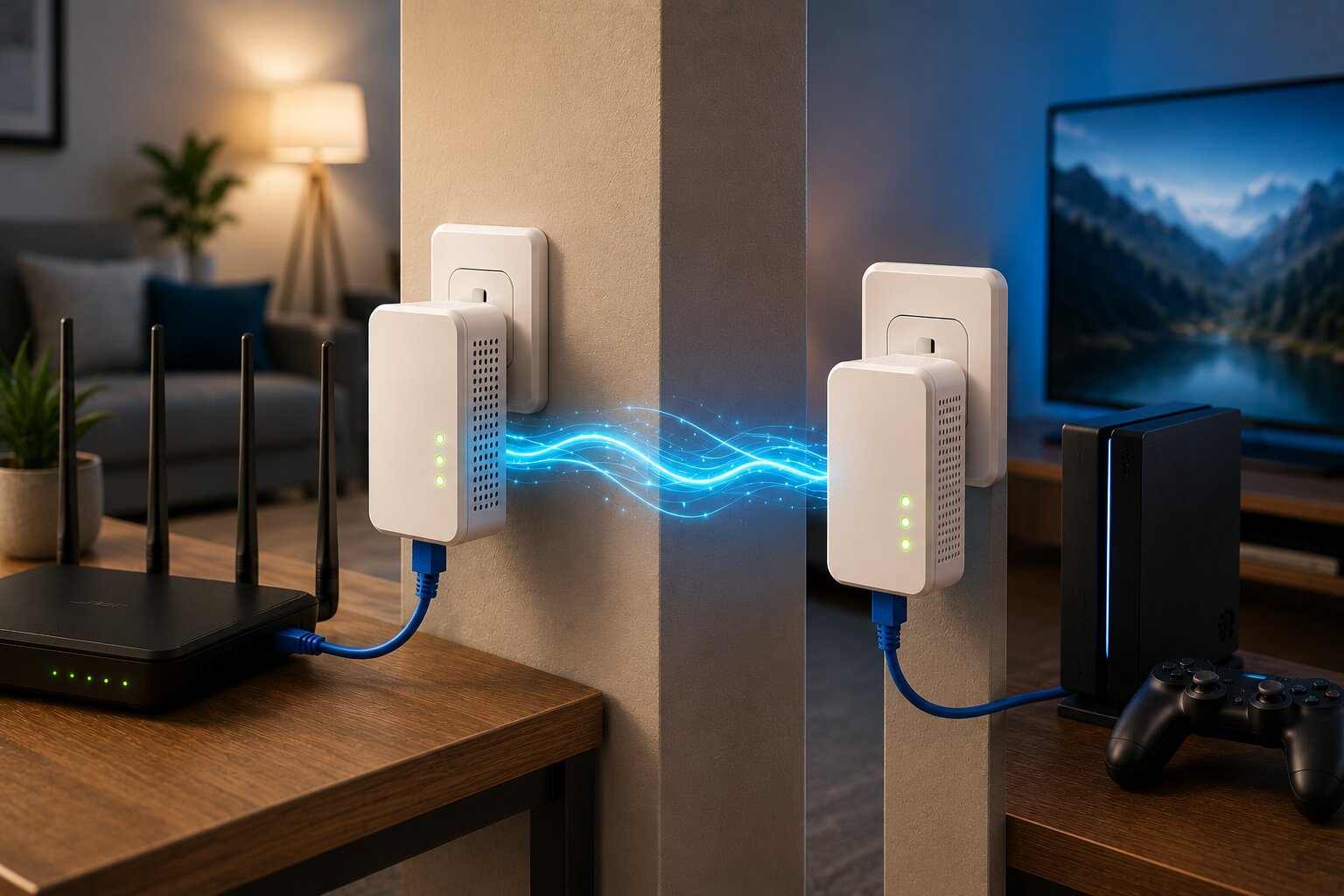
Powerline adapters can sometimes help where WiFi struggles through walls or floors. They use the electrical wiring of the property to carry network data between rooms.
This is where wireless mesh versus powerline adapters becomes a practical comparison rather than a theoretical one.
Powerline is not guaranteed, but in some homes it can provide a more stable connection for fixed equipment.
Powerline Is Not A Universal Fix Either
If mesh is unreliable because the property is difficult for wireless signals, powerline may seem tempting. But powerline has its own limitations.
Its performance depends on:
- electrical wiring quality
- circuit layout
- interference from appliances
- socket placement
- distance between adapters
Before choosing it as an alternative, it is worth understanding how powerline adapters work and why results can vary so much from one home to another.
Mesh Struggling In Large Smart Homes
Larger connected homes can place heavy demands on mesh systems. Cameras, speakers, TVs, phones, laptops, tablets, appliances and automation hubs may all be active.
A weak mesh system may struggle with:
- too many devices
- poor node distribution
- limited processor capacity
- weak 2.4 GHz handling
- inadequate backhaul
- insufficient Ethernet ports
This challenge will only increase as AI-powered smart devices become more common and homes depend on more always-connected hardware.
When The Broadband Connection Is The Real Problem
A mesh system improves in-home distribution. It cannot fix a slow or unstable broadband line.
If speeds are poor even when connected directly to the main router, the issue may be:
- broadband package limitations
- ISP congestion
- line faults
- poor modem performance
- router hardware issues
- external network problems
Before blaming the mesh system, test the broadband connection near the main router or through Ethernet if possible.
When To Replace A Mesh System
Not every mesh issue can be fixed through placement or settings. Replacement may make sense if:
- the system is old and unsupported
- firmware updates have stopped
- WiFi standard is outdated
- device load has outgrown the hardware
- Ethernet ports are too limited
- backhaul performance is consistently poor
- the home has expanded or usage has changed
Before replacing it, though, review setup, placement and configuration. Many mesh problems are caused by avoidable installation issues.
Fix The Network Before Buying More Hardware
The most effective mesh troubleshooting is methodical. Start with placement, then check backhaul, firmware, router settings, interference and device behaviour.
A well-installed mid-range mesh system can outperform a badly installed premium one. The goal is not simply more nodes or newer hardware. It is a network that works reliably where people actually use it.
Wireless mesh remains one of the best solutions for whole-home WiFi, but it needs to be understood as a system. Placement, configuration and real-world usage matter just as much as the specification sheet.
If you have hands-on experience with networking, smart-home systems or connected consumer technology, Dykes Do Digital welcomes practical insight through our Write For Us page.